
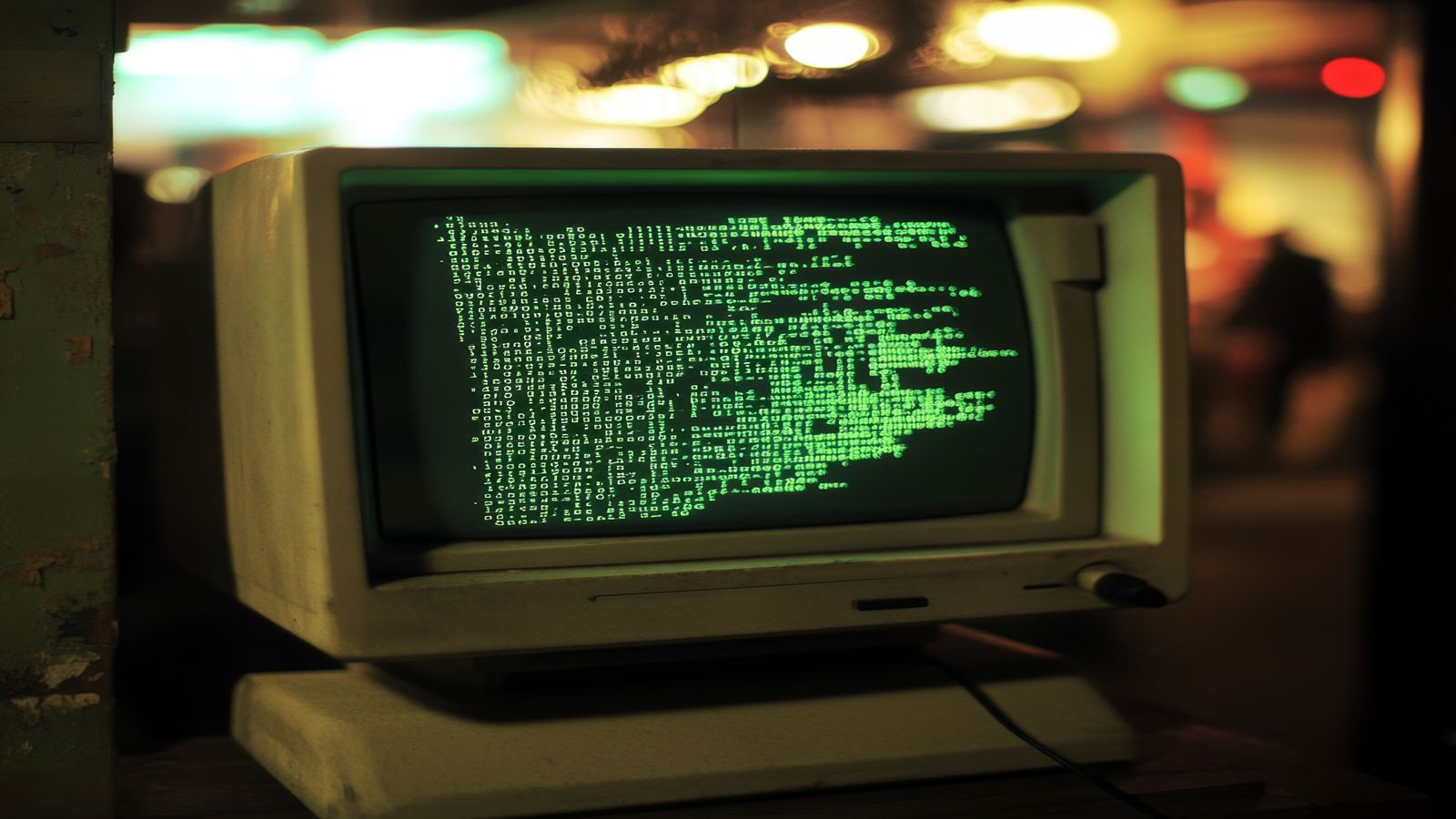
Cool Retro Term is one of those tools that looks like a joke in screenshots and turns out to be surprisingly usable in practice - a terminal emulator that replicates the look of vintage CRT monitors, complete with screen curvature, phosphor glow, scan lines, and the gentle flicker of a 1980s green-screen terminal. On Ubuntu 24.04, it runs smoothly on both Xorg and Wayland, and with the right profile tweaks, it becomes a genuinely pleasant environment for SSH sessions, log tailing, and quick scripting tasks. This guide covers installation, profile configuration for daily use, performance tuning on lower-end hardware, and creative ways to incorporate it into a modern workflow. After using Cool Retro Term as a secondary terminal for over three years, we can confirm it is more than a novelty.
Installing Cool Retro Term
From Ubuntu’s Repository
sudo apt install cool-retro-term
This installs a stable but slightly older version. It works well on Ubuntu 24.04.
From Flathub (Latest Version)
flatpak install flathub com.github.nicholasgasior.CoolRetroTerm
The Flatpak version tends to be more current and includes the latest shader improvements.
Building from Source (Bleeding Edge)
If you want the absolute latest features:
sudo apt install build-essential qml-module-qtquick-controls qml-module-qtgraphicaleffects qml-module-qtquick-dialogs qml-module-qtquick-layouts qml-module-qt-labs-settings qml-module-qt-labs-folderlistmodel qml-module-qtquick-window2
git clone --recursive https://github.com/Swordfish90/cool-retro-term.git
cd cool-retro-term
qmake
make -j$(nproc)
./cool-retro-term
Default Profiles
Cool Retro Term ships with several built-in profiles accessible via the right-click menu → Settings → Profiles:
- Default Amber - warm amber phosphor, moderate curvature and glow
- Default Green - classic green-screen terminal
- Default Scanlines - adds visible horizontal scan lines
- Vintage - maximum retro effects (heavy curvature, bloom, static noise)
- IBM Dos - DOS-style font with minimal effects
- Monochrome Green - similar to a VT220 terminal
The Vintage profile is fun for screenshots but the effects are too heavy for sustained reading. We recommend starting with Default Green or Default Amber and tuning from there.
Configuring for Daily Use
Font and Size
Right-click → Settings → General:
- Font: The built-in “TERMINUS_DOS” font is most readable at retro aesthetics. At 1080p, set the font scaling to 1.0. At 4K, increase to 1.5-2.0.
- Font width: Leave at default unless characters overlap.
Effects Tuning
Right-click → Settings → Effects:
For a profile that is retro-looking but readable for hours:
| Effect | Recommended Setting |
|---|---|
| Screen curvature | 15-20% |
| Ambient light | 10% |
| Bloom | 20% |
| Burn-in | 5% |
| Jitter | 0% (important for readability) |
| Static noise | 0-5% |
| Horizontal sync | 0% |
| Brightness | 90% |
| Contrast | 85% |
Disabling jitter and horizontal sync is key - these effects are visually dramatic but make text harder to read and can cause eye strain.
Scrollback Buffer
Settings → General → set the scrollback buffer to at least 5000 lines. The default is sometimes too low for tailing verbose log files.
Performance Considerations
Cool Retro Term uses QML and OpenGL shaders for its effects. On modern integrated graphics (Intel UHD, AMD Radeon integrated), it runs at 60 fps without issue. On very old hardware (pre-2012), the shader effects can consume noticeable GPU resources.
If performance is an issue:
- Reduce bloom and ambient light (these are the most GPU-intensive effects)
- Disable screen curvature (this is a full-screen distortion shader)
- Use the “IBM Dos” profile (minimal effects, lowest GPU overhead)
On Wayland, Cool Retro Term renders through the Wayland compositor, which adds a small amount of latency compared to a native terminal. In practice, this is imperceptible for interactive use.
Practical Workflow Ideas
SSH Session Terminal
Dedicate Cool Retro Term to SSH sessions. The visual distinction from your regular terminal (GNOME Terminal or Alacritty) makes it immediately obvious which windows are remote versus local. Set a green profile for production servers and an amber profile for development servers.
Log Monitoring
Use Cool Retro Term for persistent log tails:
journalctl -f -u nginx --output=cat
The retro aesthetic makes log monitoring feel less tedious, and the green-on-black colour scheme is easy on the eyes during long monitoring sessions.
Presentation and Screencasts
Cool Retro Term is excellent for technical presentations and YouTube tutorials. The visual distinctiveness grabs attention, and the CRT effects make terminal content more engaging than a plain black-and-white window.
Pair It with tmux
Cool Retro Term works well with tmux. The retro styling applies to the entire window, so tmux panes inherit the CRT look:
tmux new-session -s retro
Split panes with Ctrl+B then % (vertical) or " (horizontal). The scan lines and curvature create a surprisingly authentic multi-terminal retro workstation feel.
Comparison with Other Terminal Emulators
| Feature | Cool Retro Term | GNOME Terminal | Alacritty | Kitty |
|---|---|---|---|---|
| GPU-accelerated | ✅ (OpenGL shaders) | ❌ | ✅ (OpenGL) | ✅ (OpenGL) |
| CRT effects | ✅ | ❌ | ❌ | ❌ |
| Startup speed | Moderate (shader init) | Fast | Very fast | Fast |
| Resource usage | Higher (shaders) | Low | Low | Low |
| Customisation | Visual effects | Profile-based | Config file | Config file |
| Wayland support | ✅ | ✅ | ✅ | ✅ |
Cool Retro Term is not a productivity terminal - it is a mood terminal. Use it alongside a fast, minimal terminal like Alacritty for your main work, and switch to Cool Retro Term when you want the experience to feel different.
Related Reading
- Best Screenshot Tools for Ubuntu 2026 - capture your retro terminal in style
- Ubuntu 24.04 Post-Install Checklist - getting your desktop set up
- ddrescue on Ubuntu - another essential CLI tool
